
1. Getting started
Install Jewelers Handbook from the App Store and open it on your iPhone or iPad. There is nothing to sign up for, and everything works without an internet connection, so the app is just as useful in a workshop with no Wi-Fi.
The home screen lists all sections. Tap one to open it, and use the usual iOS back gesture or the back button to return.
2. Home screen and search
Sections are grouped as follows:
- Reference: Chains, Stones, Cuts, Settings, Clasps.
- Tools: Size → carat, Ring size, Metal weight.
- Personal: My pieces (saved calculations) and Favorites.
- About: Sources and About (version and settings).
The Search the handbook field at the top finds stones, cuts, settings, clasps, chains, tools and your saved pieces. It understands both languages, so you can type a name in English or in Russian.
3. Chains and calculators
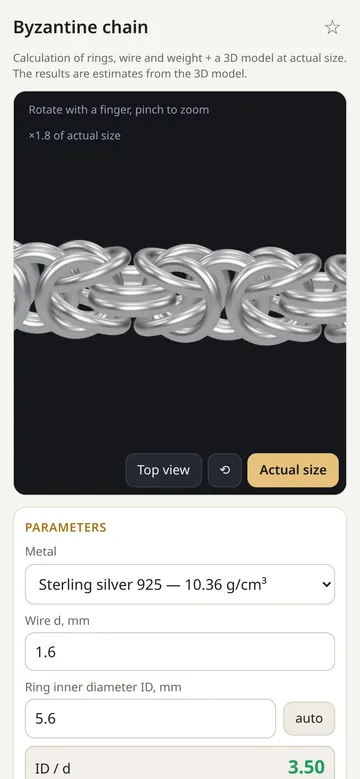
Chains has two lists: Calculators and the Chain type catalog, which describes each weave and what it is used for.
Byzantine chain
- Choose the Metal. Its density is filled in for you.
- Enter the wire diameter and the ring inner diameter (ID). Tap auto to have the ID suggested from the wire.
- Enter the total length and the clasp length, and a wire allowance if you want extra.
- Read the results: weave length, rings per 1 cm, number of rings, wire per ring and in total, ring weight, weave weight, wire to buy with the allowance, chain width and thickness, and the outer ring diameter.
The ID/d ratio is checked, and you’ll see a warning when it is outside the range where the weave assembles well. Highlight rings by role colors the rings in the 3D model so you can see how the pattern is built.
Test piece. Real chains depend on the mandrel, the springiness of the wire and how tightly you work. Weave a 2–3 cm test piece, count the rings per 1 cm and enter the number in the test piece field: the whole calculation updates.
Anchor (cable) chain and Moscow bit
The anchor calculator works with oval or round links and lets you set flattening (hammered or pressed links) and diamond-cut links separately. Moscow bit is an anchor chain with small links on every second link; you can choose the metal of the small links. Both calculate links and weight and show the chain in 3D at actual size.
Approximate chains
Bismarck, rope, curb, Figaro 3/1 and box chains are calculated from published weight tables (grams per centimeter for a given width or wire diameter). They are marked approximate: use them for a quick estimate and confirm with a test piece.
4. 3D views
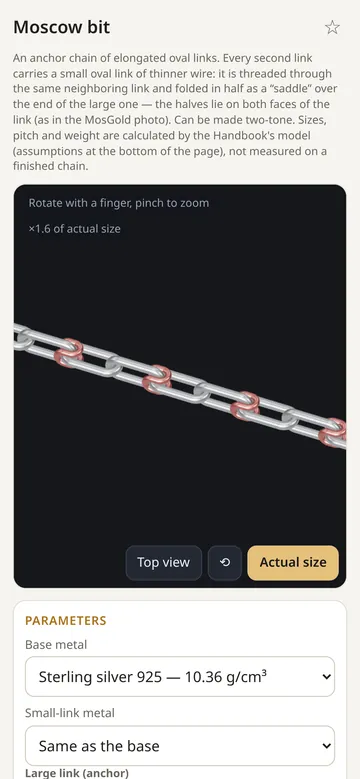
Chains, cuts, settings, clasps, rings and the carat tool have a 3D view.
- Rotate with one finger, zoom with a pinch.
- Top view turns the model to look straight down; the ⟲ button resets the view.
- Actual size zooms the model to 1:1 (see the next section).
Labels on the view say what you are looking at, for example “Illustration: a nominal cut model” or the current scale such as “×1.8 of actual size”. Clasp models open and close with ▶ Open / close. Illustrations are not technical drawings: sizes follow your input, other proportions are nominal.
5. Actual size and calibration
Tap Actual size under a 3D view and the model is zoomed so that 1 mm on screen equals 1 mm in reality, with a millimeter ruler along the edge. Hold a stone, ring or chain against the screen to compare. Pinch or tap ⟲ to leave 1:1. The button is shown only where the model is drawn to scale.
On iPhone and iPad the scale is set automatically from the device model, using the screen resolution and pixel density in Apple’s tech specs. If your device is not recognized, the app asks you to calibrate.
Calibrate with a card (in About; the button reads Refine with a card when the automatic scale is active): hold any bank card against the screen (ISO standard, 85.60 mm wide) and move the slider or tap −/+ until the frame matches the card’s edges. A card calibration takes priority over the automatic scale until you tap Reset calibration.
6. Stones
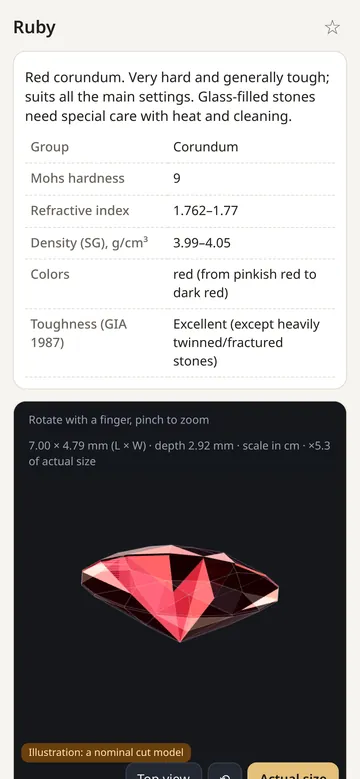
Stones lists 32 gemstones and simulants, from diamond, ruby and sapphire to pearl, amber, cubic zirconia and moissanite. Each card shows, where a reliable source exists:
- group or species, Mohs hardness, refractive index and density (SG);
- typical colors and toughness after GIA (1987);
- common treatments with how often they occur;
- whether ultrasonic cleaning is safe and care notes;
- a short description and links to the sources.
Empty fields are left empty on purpose: the handbook never fills in a guessed value.
7. Cuts
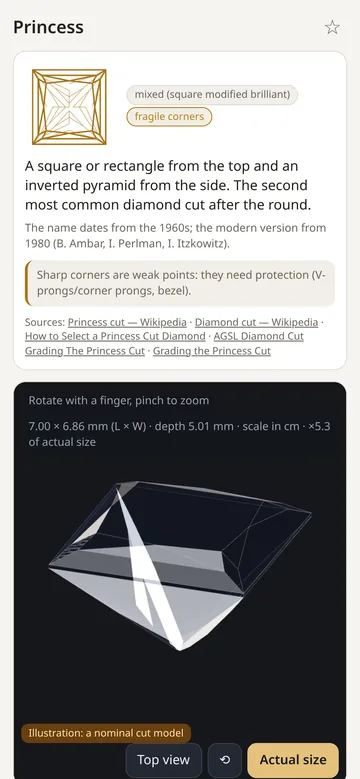
Cuts covers 15 cuts: round brilliant, old European, princess, cushion, oval, pear, marquise, emerald, Asscher, radiant, heart, baguette, trillion, cabochon and rose. Each card has a facet diagram, a description, typical proportions, warnings about fragile spots such as sharp corners, sources and a 3D model you can view at actual size.
8. Settings and the setting finder
Settings describes 13 setting types: prongs, bezel, half bezel, flush (gypsy), channel, pavé, shared prong, tension, bar, cluster, halo, illusion, and cement or peg and cage for pearls.
Open Setting finder (stone + cut), choose a stone and a cut, and the app shows which settings are Recommended and which are Not recommended, together with recommendations and parameters for the setting.
9. Clasps
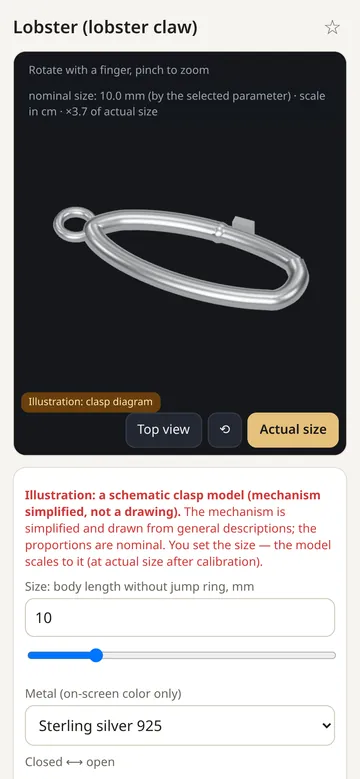
Clasps covers 14 types: lobster, spring ring, fold-over, bayonet, barrel, box, slide, bead, magnetic, toggle, hook and eye, slider (bolo), buckle, and safety options (figure-eight safety and safety chain). Each card has a 3D diagram that you can scale to your size and open and close, plus where the clasp is used, its pros and cons, and example weights from supplier listings where available.
The Clasp finder lets you tick what matters to you and shows the clasps whose sources confirm those features.
10. Tools: carat, ring size, metal weight
Size → carat
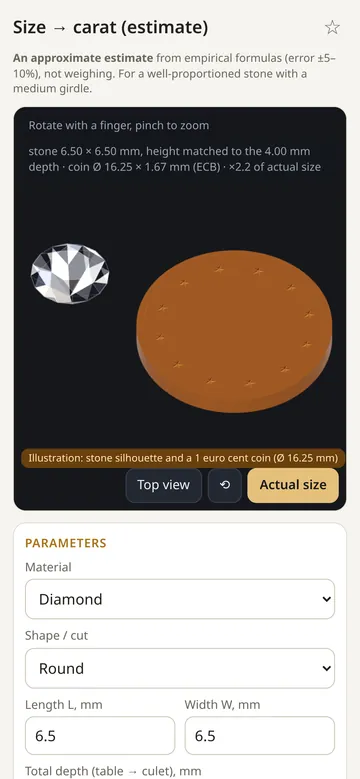
Estimates a stone’s weight from its dimensions using empirical formulas (error about ±5–10 %), for a well-proportioned stone with a medium girdle.
- Choose the Material: diamond, or a colored stone by its density (pick the stone and its SG is filled in).
- Choose the shape or cut and enter length, width and total depth. Square shapes of colored stones can also use the diagonal.
- Optionally choose girdle, pavilion bulge and outline corrections. The result is shown in carats.
The 3D view shows the stone next to a 1 euro cent coin (Ø 16.25 mm) for scale.
Ring size
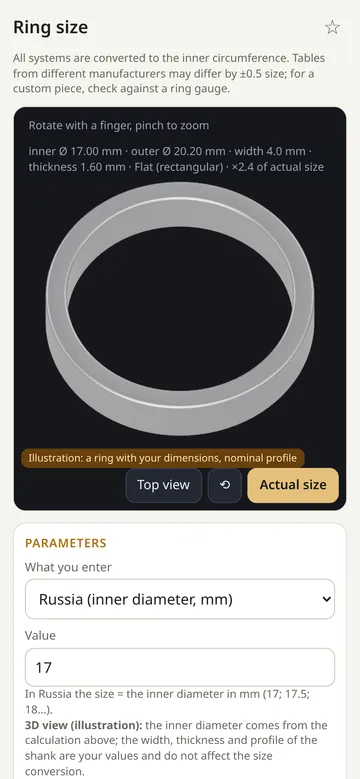
Choose what you enter (EU / ISO circumference, Russian size, inner diameter in mm, US or UK letter) and type the value. You get the size in every system plus the inner circumference and diameter, and a full EU 44–72 table. Sizes from different manufacturers can differ by about half a size, so check a custom piece against a ring gauge. The 3D ring uses your shank width, thickness and profile.
Metal weight
Weight = volume × density. Choose the metal (sterling silver 925, fine silver 999, gold 585 and 750, platinum 950, copper, brass) and what to calculate:
- Wire / rod / strip / tube with a round or other cross-section;
- Sheet / plate;
- Ring blank (shank) from the inner diameter, width and thickness.
Enter a length to get the weight, or a mass to get the length you can make from it. Alloy densities are typical values; check with your supplier.
11. My pieces and favorites
In any calculator tap Save to “My pieces”. Saved calculations appear in My pieces with a 3D thumbnail; you can Open, Duplicate or Delete them.
Export JSON saves all your pieces to a file, as a backup or to move them to another device; Import JSON loads them back.
Tap the ☆ star on any card to add it to Favorites.
12. Sources, About and appearance
Sources lists all 77 sources the data come from, such as GIA articles, standards, supplier catalogs and encyclopedia articles, and each card links to the ones it uses.
About shows the app and content versions and holds the settings: the Theme (System, Dark or Light) and the actual-size scale with card calibration.
13. Language
The app is in English and Russian and follows your device language. To switch only this app, open iOS Settings → Jeweler’s Handbook → Language. Search works in both languages either way.
14. Your data and offline use
All catalogs, calculators and 3D models are built into the app, so it works without an internet connection. Your pieces, favorites and settings are stored only on your device. The app has no accounts, ads, analytics or tracking. See the Privacy Policy.
15. FAQ
Do I need an account?
No. There is no sign-up or sign-in. Open the app and start using it right away.
Does Jewelers Handbook work offline?
Yes. All catalogs, calculators and 3D models are built into the app. You only need a connection to install or update it from the App Store.
How accurate are the weight and carat results?
They are estimates. Chain weight depends on the mandrel, the wire and how tightly you work; carat estimates have an error of about ±5–10 %; alloy densities vary. Use a test piece, scales and a gauge before making a piece.
What does “approximate” mean on some chains?
Those chains (Bismarck, rope, curb, Figaro, box) are calculated from published weight-per-centimeter tables rather than from a full geometric model. They are good for a quick estimate; confirm with a test piece.
Actual size looks wrong on my device. What can I do?
Open About and use Calibrate with a card: hold a bank card against the screen and adjust until the frame matches it. The calibration is kept until you reset it.
Why are some fields empty?
When there is no reliable source for a value, the field is left empty on purpose instead of showing a guess.
Which languages does the app support?
English and Russian. The app follows your device language; you can change it for this app only in iOS Settings → Jeweler’s Handbook → Language.
How do I move my saved pieces to another device?
In My pieces tap Export JSON, send the file to the other device and use Import JSON there.
Does it work on iPad?
Yes, Jewelers Handbook runs on iPhone and iPad, and actual size is supported on both.
16. Still need help?
Email dreamcomenull@gmail.com with your device model, iOS version, the app version and what happened. A screenshot helps a lot. You can also visit the support page.